Managing File Permissions in OS

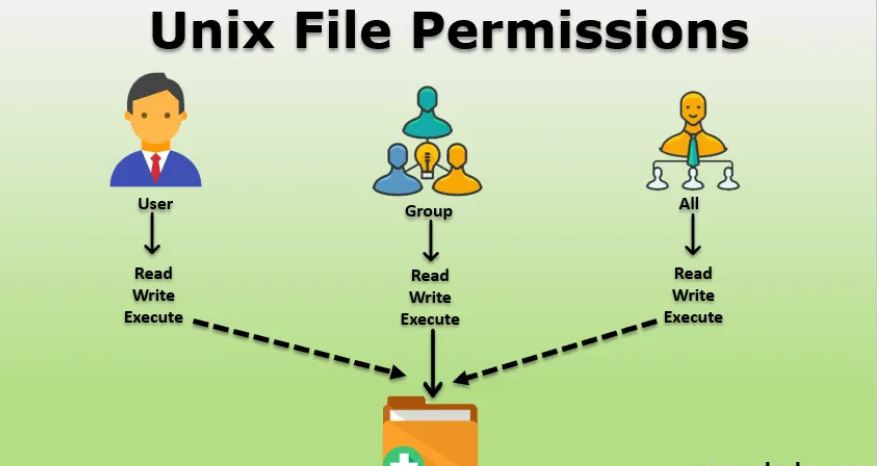
Now we are going to see the permissions of different files in OS.
In Windows
Just click on any file, actually right-click and view it in File Explorer, and then right-click on the file and go to properties.
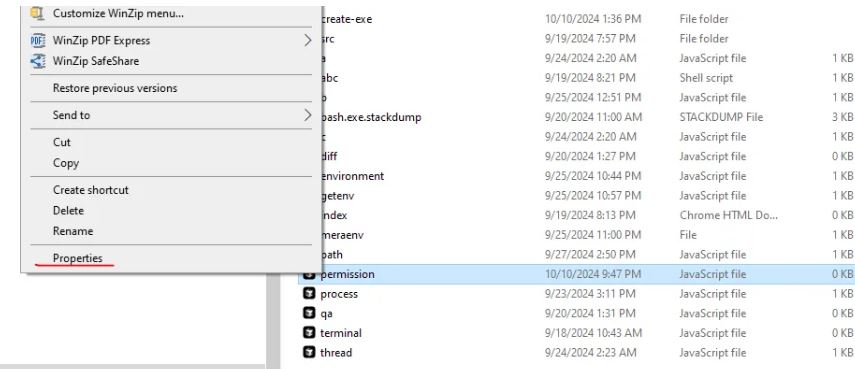
And then, once the Properties tab is opened, you select the Security tab, and you can see the permissions. Now, if you click the Edit icon and then select your name as the user, you can modify the permissions.
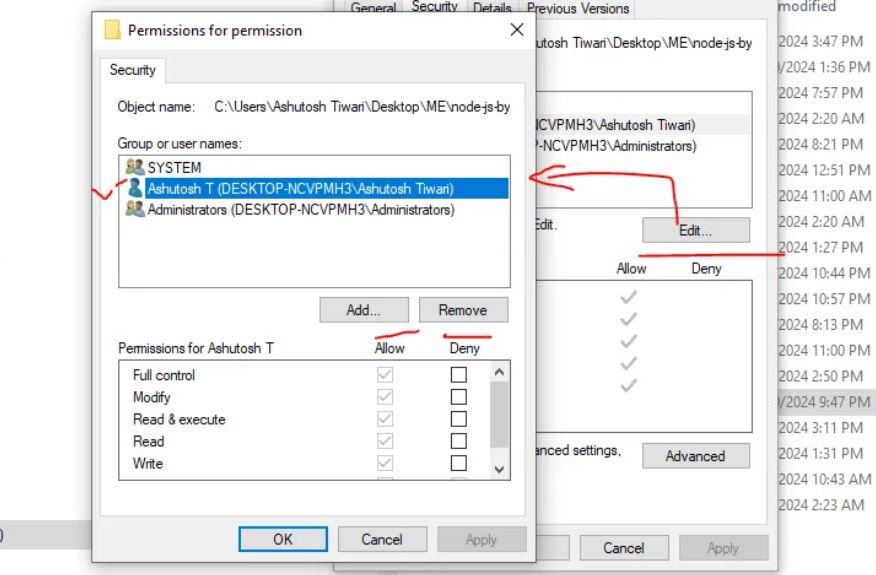
Now, if you deny write permissions, then you will not be able to write anything in permission.js, which I have created and accessed after revealing it in File Explorer. If you deny read permission, you will not be able to read, and when you deny write, you will not be able to write.
A Gotcha
A file that has write access but not read access—how will you write without reading it? VS Code and any editor will not help you with this because only after reading will you be able to write. That’s why terminals are powerful. Now, using terminals, you will be able to write into it, using the commands we’ve already discussed earlier.
There are multiple types of permissions, but we will focus on three only:
- Read
- Write
- Execute
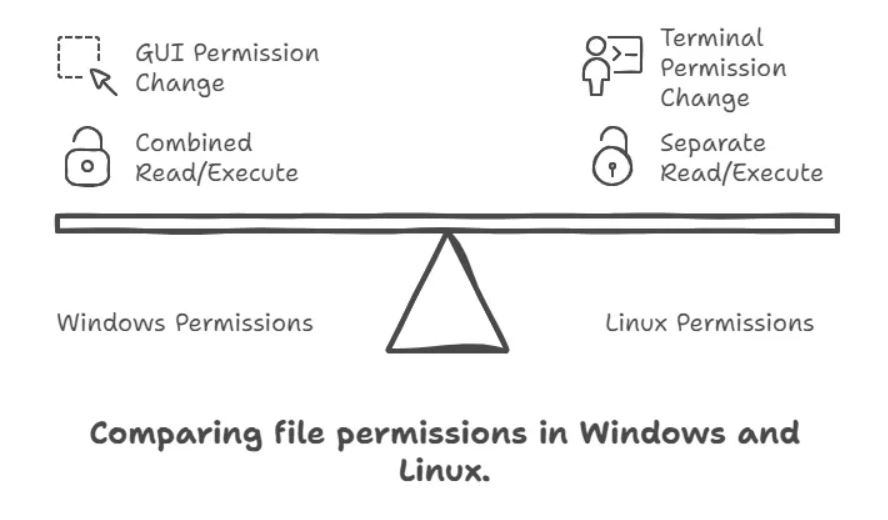
In Windows, Read and Execute permissions are combined in the Windows OS, as you can see in the above screenshot, but that’s not the case in Linux systems.
In Windows, you can click ALT + ENTER to open the properties window if the file is opened in File Explorer. Note one thing: if you remove executable permission in Windows, after trying to run the file, you will see the same message in the terminal—PERMISSION DENIED.
Read more here: What are Executable Files.
In Linux
ls -l // use this to get list of all permission of a file in terminal
🕑 22:20  heyashu ~/Desktop/ME/node-js-by-ashu/permission (master)
🚀 ls -l
total 0
-rw-r--r-- 1 Ashutosh Tiwari 197121 0 Oct 10 21:47 permission.js
The time you see in the last modified time.
197121: is denoting bytes of files.
And remember, the directory/folder size remains the same, and that doesn’t depend on the files under that folder, technically speaking. Not like on top, but think technically. By default, a folder has 4096 (4KB assigned).
Ashutosh Tiwari: is the user of WSL. There is a concept of groups in an OS. You can check and read this online. One computer can have multiple users and multiple groups, and this happens in both Linux and Windows.
1: is about a hard link. Read online about what hard links are.
rw-r--r--
So, there are a total of 10 characters.
- If starting with a dash (``), it means it's a file.
- If starting with
d, it’s a directory or folder. - If starting with
L, then it’s a symbolic link.
Then there are 3 groups of 3 characters each:
rmeans read,wmeans write, andxmeans executable.
rw- means it has read and write permissions.
r-- means only read.
r-- means only read.
Why 3 Groups?
- The first three characters: the owner has those permissions.
- The second group: if the owner is in a group, then what that group can do.
- The third group: other users who are not part of any group.
How to Change Permissions
chmod +x src/
chmod means change mode. + means giving permissions, and - means denying permissions. You got what x, r, and w mean earlier.
Note: chmod +x src/ — if you change the permission like this, executable file permission will be given to all three types of users. The same goes for read permission. But if you give or remove -w, it will apply to the owner only, the first group.
NOTE**:** you can remove permission group wise or together to do this read online , I am writing this line to let you know that is possible.
I will suggest you to check more on chmod .
Number System in file permission result
Now we know there are three letters that denote file permissions: r, w, and x. But there are also numbers that denote file permissions. Those are:
1for execute,2for write, and4for read.
🕑 02:13  heyashu ~/Desktop/ME/node-js/permission (master)
🚀 stat -c "%A %a %n" permission.js
-rw-r--r-- 644 permission.js
As you see, we have written a special command that is giving values, here 644. So 6 is for the first group, rw-, which means 4+2+0 = 6.
4 is for the second group, r--, which means 4+0+0 = 4. And the same goes for group 3, which denotes other types of users. and using these number you can give permissions
chmod 700 fileName.txt
You can create alias of last command Read more about this Promt in Terminal
Git Identifies the Permission
You know Git only tracks file changes, but if you do git init with some file and then add it and commit it, then try to change the permission of any file, Git will track that, and it will show as a change in the Git history. Then you need to add and commit again. So remember, Git tracks file permissions also.
Want me to write notes on a course?
Tell me the course, book, or research topic you want covered. If it helps learners, I'll consider adding structured digital notes for it in the garden.
Have a notes collection to feature here?
Do you have open notes you want featured in this digital garden? Let me know — we can collaborate and publish them for learners worldwide.
Having a doubt? Ask a query?