Basic shell commands
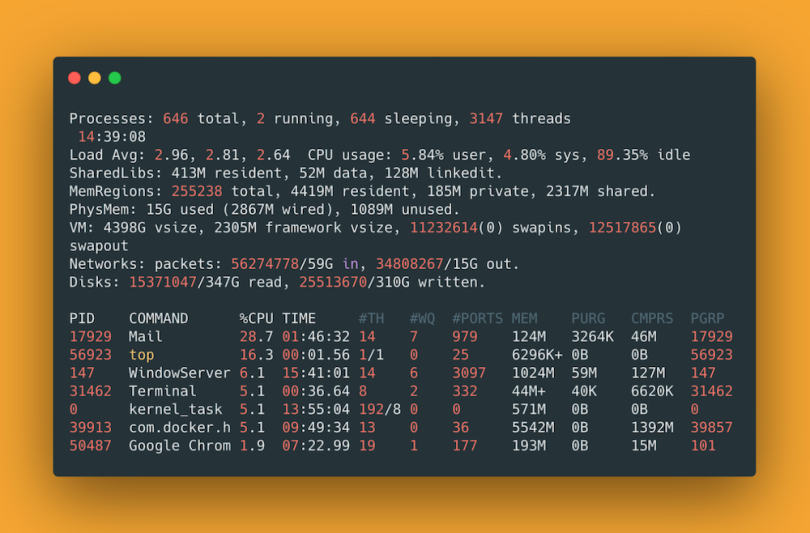

Now let see few commands of the shell,
echo heyashu
echo
echo is same as console.log() just printing what you typed
Ashutosh Tiwari@DESKTOP-NCVPMH3 MINGW64 ~/Desktop/ME/node-js-by-procodrr
$ echo heyashu
heyashu

Ashutosh Tiwari@DESKTOP-NCVPMH3 MINGW64 ~/Desktop/ME/node-js-by-procodrr
$ echo $num

Ashutosh Tiwari@DESKTOP-NCVPMH3 MINGW64 ~/Desktop/ME/node-js-by-procodrr
$ num=8

Ashutosh Tiwari@DESKTOP-NCVPMH3 MINGW64 ~/Desktop/ME/node-js-by-procodrr
$ echo $num
8
Ashutosh Tiwari@DESKTOP-NCVPMH3 MINGW64 ~/Desktop/ME/node-js-by-procodrr
$ echo $((num+2))
10
So, aapne dekha ki Bash ke andar hum bahut kuch kar pa rahe hain. Actually, Bash bhi ek tarike ki scripting language hai, isme bhi loops hote hain aur bahut kuch. Bash file ka extension hota hai .sh, aur koi bhi file aap .sh se bana ke run kar sakte ho, aur saara code waha likh sakte ho.
//test.sh

num1=2
num2=3

echo $((num1+node2))
echo "KAHTAM'

// ab terminal pe jaake likh do ./test.sh aur aapki file run ho jayegi
pwd : print working Directory/ Folder
Iska full form hai print working directory, ye aapko current folder ka naam print kar deta hai.
Ashutosh Tiwari@DESKTOP-NCVPMH3 MINGW64 ~/Desktop/ME/node-js-by-procodrr
$ pwd
/c/Users/Ashutosh Tiwari/Desktop/ME/node-js-by-procodrr
whoami
ye user ka naam print kr deti hai
Ashutosh Tiwari@DESKTOP-NCVPMH3 MINGW64 ~/Desktop/ME/node-js-by-procodrr
$ whoami
Ashutosh Tiwari
cd
Iska naam hai change directory. Ek directory se pichhle ya agle mein jaane ke liye. Dekho, aap ek level upar bhi ja sakte ho aur next directory mein type karke ja sakte ho, ya fir aap pichhe ja sakte ho. To kuch commands likh deta hu, aap apne terminal mein try kariye. Haan, aur Bash hi use kariye, PowerShell nahi.
cd ../
cd <press tab>
cd ..
cd <type file name>
Achha, ek cheez, agar aap cd ../ karte jaoge to aap root directory par pahunch jaoge, aur last mein ~ sign dikhega aapko. Aur agar kahin se bhi aapko home directory mein aana hai, to aapko terminal mein sirf cd likhna hoga.
~/
achh aapko kaise pta chalega kitne next folder hai directories hai mere curr directory ke andar
ls : List
ye hai list command aapke type krte hi jitne folder ya diretcories hai wo list ho jayengi
Ashutosh Tiwari@DESKTOP-NCVPMH3 MINGW64 ~/Desktop/Me
$ ls
ashu-port-2024/  delete/  namaste-node-js-by-ashutosh/  node-js-by-procodrr/  test/

//yad rakhein
./  represents current directory and
../ parent directory
ls -la ( will discuss later)
// i will drop a link in the heading , keep visiting
$ ls -la
total 5
drwxr-xr-x 1 Ashutosh Tiwari 197121  0 Sep 18 13:10 ./
drwxr-xr-x 1 Ashutosh Tiwari 197121  0 Sep 18 10:42 ../
-rw-r--r-- 1 Ashutosh Tiwari 197121  0 Sep 18 10:43 terminal.js
-rw-r--r-- 1 Ashutosh Tiwari 197121 46 Sep 18 13:11 test.sh
Creating , Copying Moving and Deleting using commands
Ab hum dekhne ja rhe hain files ko copy move rename aur delete kaise kr sakte hian ?
touch : Create File
touch ka use karke aap ek nayi file create kar sakte ho. Agar folder yaani directory create karni ho, to mkdir command ka use karna padega.
//go to you command and write
touch index.html
// ye index.html ban jayegi same root pe, aap sape deke kayi file likh sakte  ho
mkdir : Make Directory / Folder
Iska full form hai make directory, aur jab aap iske baad kuch likhte ho, to wo folder ke roop mein create ho jata hai. Niche jo command likhi hai, usse same root mein src folder ban jayega.
$ mkdir src
cp : Copy Files
cp file copy karne ke liye use kiya jata hai, aur aapko do paths dene hote hain. Ye dhyan rakhna, agar aap path likh rahe ho to quotes me likhna.
// cp <kya krna hai uska path> <jaha carna hai uska path>

Ashutosh Tiwari@DESKTOP-NCVPMH3 MINGW64 ~/Desktop/Me/node-js-by-procodrr
$ cp index.html src
// isse index.html src me copy ho jayegi/

// example with full path
$ cp index.html "C:\Users\Ashutosh Tiwari\Desktop\mera-project\src"
mv : Move files
ye bhi same hai bs
// mv <kya krna hai uska path> <jaha carna hai uska path>
Rename the files
Yeha abhi same command use hoti hai bs aapko file ka naam likhna hai jaise
Ashutosh Tiwari@DESKTOP-NCVPMH3 MINGW64 ~/Desktop/Me/node-js-by-procodrr
$ mv test.sh  abc.sh
// test.sh abc.sh se rename ho jayegi.. aap yaha par path bhi de skte ho kaha move krne hai aur kya rename
//krna hai bs baat ke aage file na rename wala naame likh do
Dhyan rakhiyega, yaha Ctrl + Z kaam nahi karta hai. Har cheez permanently remove, delete, aur rename hoti hai.
rm: Remove a file
rm fileName

// for multiple files
rm fileName1 fileName2
rmdir : Remove a Directory / folder
rmdir folderName se sirf empty directory ya folder hi delete hoga. Agar uske andar kuch hai to wo delete nahi hoga.
rmdir emptyFolderName // deletes empty folder

rmdir -r anyFolderName // r denotes recursive flag ( mtlb jabardasti )

// ek aur flag hota hai -f ( force ) joki bad me dekhenge
Create Multiple files
Agar humein bahut saari files ek sath banani ho, to hum Bash mein loop bhi chala sakte hain.
Ashutosh Tiwari@DESKTOP-NCVPMH3 MINGW64 ~/Desktop/Me/node-js-by-procodrr/src
$ for i in {1..50}; do touch app$i.js; done
Aur aap delete bhi kar sakte ho, bas previous command me touch ki jagah rm likh do.
cat : Files read
Agar bahut badi file ho, to ye concatenate karke print kar deta hai.
cat test.sh
// niche saara content print ho jayega
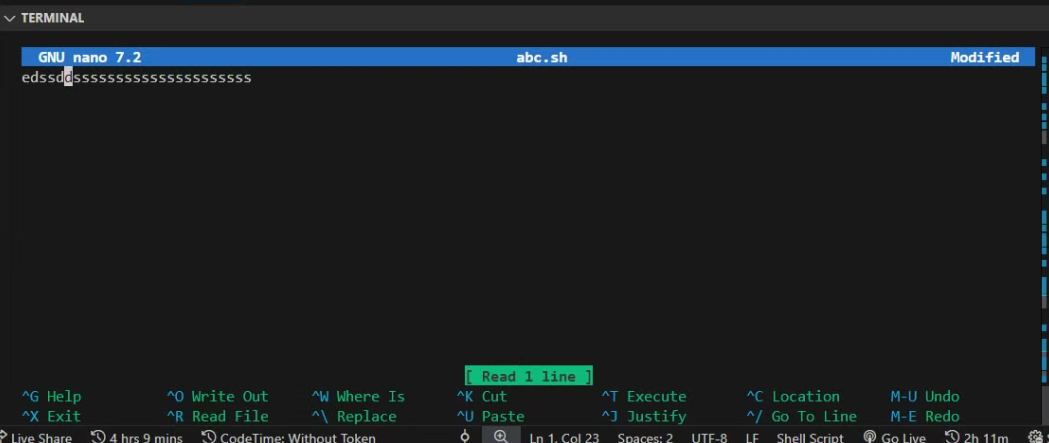
nano : a Editor
Ye ek tareeke ka editor hai. Iske aage koi file likhoge, to wo ek editor me khul jayegi aur aap kuch bhi edit kar sakte ho. Ye kya hota hai aur kyu hota hai, aap internet pe search kar lijiyega.
nano abc.sh
// niche screen me jo aapko ^ dikh rha hai, use command kahte hain.+
vim : ye bhi ek editor hai
Vim ek aur editor hai jo nano se zyada powerful hai. Exit karne ke liye kuch tarike hote hain. Actually, Vim mein do modes hote hain — insert mode aur command mode. Jab aap bahar aana chahte ho ya jo bhi likha hai usko save karna chahte ho, to sabse pehle ESC press karo, fir likhne ke liye :w likho. Iska matlab hai jo aapne edit kiya hai, usse save karo. Fir :q likho aur enter press karo, to quit ho jaoge. Agar aap I press karoge to insert mode mein aa jaoge. Aap :wq bhi likh sakte ho, jo save aur quit dono ek saath karta hai. Vim bahut powerful hai, lekin isme bahut saari aur powerful cheezein bhi hain.
vim app.js
To aapne dekha, agar server pe koi cheez aapko edit karni hai jaha sirf CLI hai, koi UI nahi, to aapko vim ya nano editor use karna hoga. vi editor ke baare mein bhi jaake padhiye, bahut khoobsurat cheez hai. Maza aayega! Jaake padhiyega vi editor, vim editor, aur unki history.
Want me to write notes on a course?
Tell me the course, book, or research topic you want covered. If it helps learners, I'll consider adding structured digital notes for it in the garden.
Have a notes collection to feature here?
Do you have open notes you want featured in this digital garden? Let me know — we can collaborate and publish them for learners worldwide.
Having a doubt? Ask a query?