Introduction to Terminal and Shell

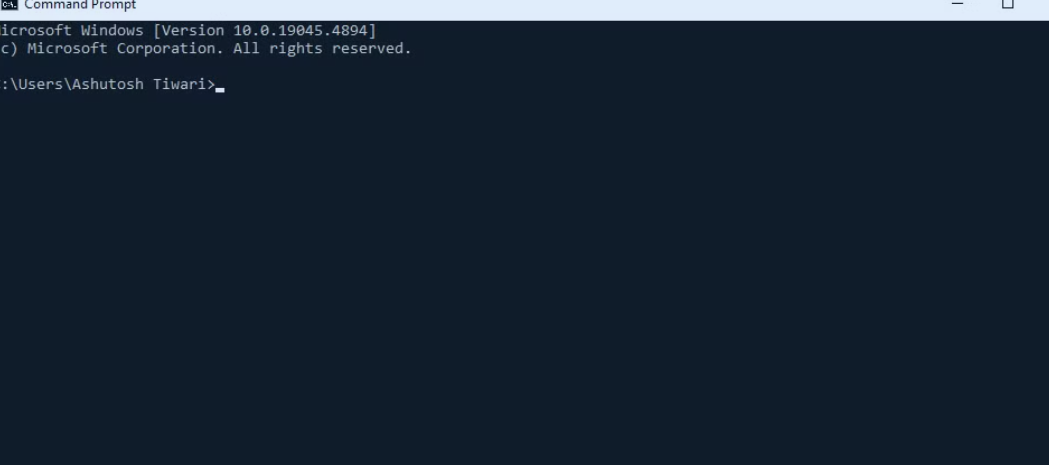
Terminal: Yeh ek tarike ka app hai jiske through aap apne system ko operate karte ho. Jaise kai tarah ke browsers hote hain, waise hi kai tarah ke terminals bhi hote hain.
Achha, ab kaise open karein? Iske liye aap apne keyboard par Start key ko press karein aur search bar mein Terminal ya PowerShell type karein. Aur bas, open ho jayega!
Ye terminal me kai tarah ke shell hote hain, jaise Command Prompt aur Windows PowerShell — yeh Windows mein milte hain. Agar aap Linux use karoge, to wahan aapko Bash shell dikhega. MacOS mein aapko Terminal app mein zsh~ shell milega.
Hum aage Bash shell hi use karenge.
Install bash shell
Chalo, ab VS Code mein chalte hain aur ek file banate hain terminal.js. Terminal ko open karne ke liye Ctrl + J press karo, jahan hum apna code run karte hain, wahi terminal hota hai. Ab waha right side aapko option milega select karne ka, ki aap kya use karna chahte ho — Git Bash select karo ya agar download nahi kiya, to iss link pe click karke Git download kar lo.
VS Code ko reopen karoge, to Git Bash bhi dikhne lagega.
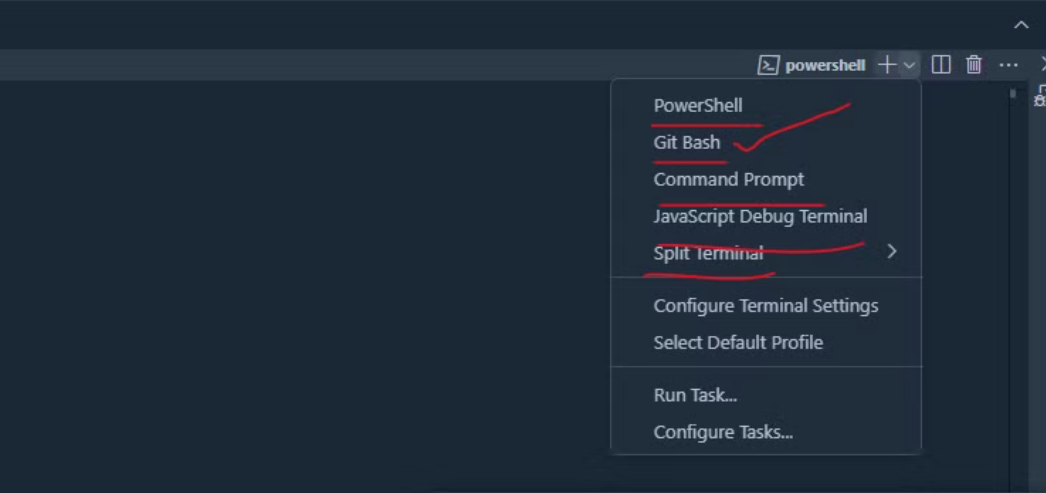
Git install hua ki nahi ye janne ke liye aap check kr skte ho aise, terminal me
Ashutosh Tiwari@DESKTOP-NCVPMH3 MINGW64 ~/Desktop/ME/node-js-by-procodrr
$ git -v
git version 2.45.0.windows.1
Chrome mein aur har ek OS mein ek terminal by default aata hai, lekin Git Bash shell ek best options mein se ek hai, aur yahi hum use karne wale hain.
Want me to write notes on a course?
Tell me the course, book, or research topic you want covered. If it helps learners, I'll consider adding structured digital notes for it in the garden.
Have a notes collection to feature here?
Do you have open notes you want featured in this digital garden? Let me know — we can collaborate and publish them for learners worldwide.
Having a doubt? Ask a query?